
A laptop battery is the part that decides whether a machine stays useful on the move or ends up tied to a wall socket. Like every lithium battery it ages, and the way we charge and store the laptop can either slow that ageing or speed it up.
In this article we will discuss the habits that protect a battery, the checks you can do in minutes, and the warning signs of a swollen battery that need quick action.
Heat does more harm than almost anything else
Every laptop battery is a lithium-ion pack, and every lithium-ion pack ages through slow chemical changes that heat speeds up. HP’s technology guidance calls heat the main cause of lithium-ion battery degradation, and says that constant heat combined with being plugged in will eventually lead to battery failure. Asurion, a device protection company, makes a similar point by saying that excessive heat is one of the biggest contributors to battery wear. The message from three independent voices is the same, so it is a good place to start your care routine.
Computerworld reports that manufacturers describe an ideal operating range of roughly 50 to 95 degrees Fahrenheit, and that time spent above 95 degrees causes extra wear. Under normal conditions, a laptop in a cool room will stay comfortably inside that range. Problems come from situations like a closed car on a summer day, a bag left on a sunny windowsill, or a laptop run at full load under a blanket. These situations push the battery well beyond its comfort zone and may damage it even in a single afternoon.
Heat also comes from inside the machine. HP lists heavy workloads such as gaming and video rendering while the laptop is charging, poor ventilation on soft surfaces and dust-clogged fans as common sources. Charging is itself a heat-producing activity, and when it is combined with demanding software, the battery sits next to a hot processor with nowhere for the warmth to go. That is why a gaming laptop on a bed can be worse for the battery than a thin ultrabook on a desk.
The practical fixes are cheap. Use the laptop on a hard, flat surface so that the vents underneath can breathe. Clean the vents with a soft brush or short bursts of compressed air when the machine is off, being careful not to spin the fan too fast. For long sessions of intensive tasks, an active cooling pad can lower temperatures, and HP suggests this for heavy workloads. If the fans are loud all the time, even with light use, dust or an aging cooling system may be the cause, and a technician can clean or replace it.
Charge levels from twenty to eighty percent
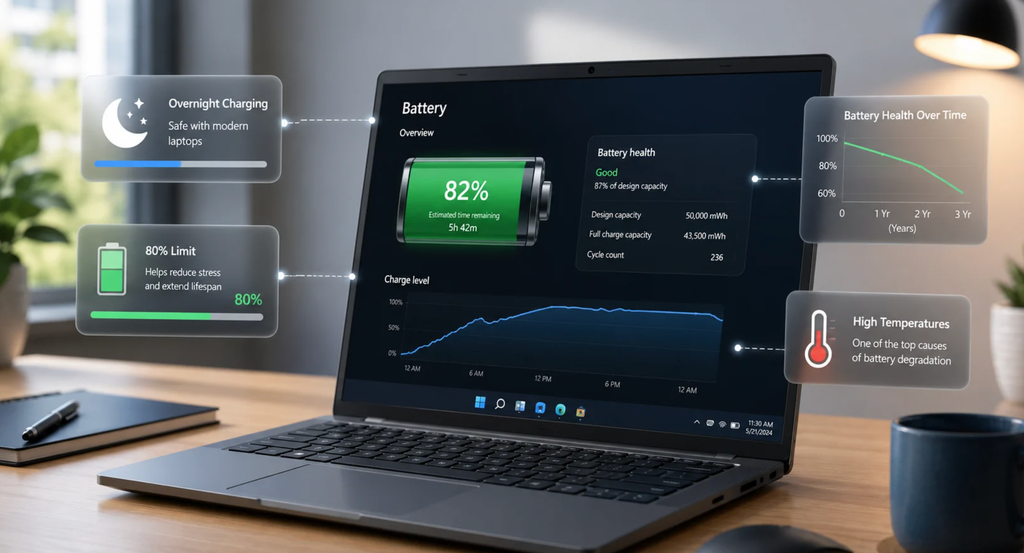
The advice to keep batteries between 20 and 80 percent appears in many sources, and it is based on the way lithium-ion cells experience stress. Very high charge levels put the cell at a higher voltage, and very low levels can leave it vulnerable to deep discharge. Computerworld reports that manufacturers recommend charging to somewhere between 60 and 80 percent instead of staying at 100 percent. It also says that Microsoft recommends keeping the battery between 20 and 80 percent several times a week, rather than only using it for short periods between charges.
Do not turn this into a chore. Computerworld’s author specifically advises against constantly unplugging the laptop to hold it at 80 percent, and says that if your laptop has no charge limit setting, you can simply charge it normally. The value of the guidance is in the habit it creates, which is not to treat 100 percent as a goal and not to let the battery sit empty for long periods. A person who uses a laptop on the move every day will experience slightly different wear from someone who uses it as a desktop replacement, and both can follow the advice in a relaxed way.
Avoiding the bottom of the range is just as important. Computerworld notes that Windows suspends the machine at a low battery level, so true zero should not appear in ordinary use. Leaving a battery at zero for months, however, will noticeably degrade it, which is a risk for laptops that are put in a drawer after the battery runs flat. If you see the low-battery warning, plug in soon instead of ignoring it, because repeated deep discharges also wear the pack faster.
HP offers a useful routine for people who like specific numbers. Its guidance suggests using a 20 to 80 percent range where practical and, when the laptop is plugged in for a long time, occasionally unplugging it and letting the charge fall to about 30 percent before recharging. HP says that these habits, together with heat control, are the key factors for a battery lifespan of four to five years. That is the company’s own estimate and individual results vary, but the advice is consistent with the other sources.
HP’s own page contains some inconsistent statements about where battery management happens and how the charge advice varies in different sections, so treat its numbers as a general direction rather than a strict procedure. A sensible approach is to rely on the settings your manufacturer provides, which are designed for your specific hardware. These settings often have names such as battery health manager, conservation mode, smart charging or adaptive charging, and they will be covered in a later section. If your laptop has one, turning it on is easier and more reliable than watching the percentage by hand.
Plugged in all day is mostly fine, with conditions
One of the most common questions about laptops is whether leaving them plugged in ruins the battery. HP explains that a modern laptop does not overcharge the battery, because the battery management system cuts the current when the pack reaches full charge. Asurion agrees that true overcharging is uncommon since modern laptops stop actively charging when the battery is full. So the old fear that the battery will explode from being left on the charger is not how current machines work.
There is a real catch, though. HP warns that holding the battery at 100 percent for long periods puts voltage stress on the cells and can reduce capacity somewhat faster, and Asurion says that keeping the battery at 100 percent for extended periods, especially when warm, can still add gradual wear. HP also describes a trickle behavior in which the charge slips to about 95 percent before the battery is topped up again. The result is a battery that spends almost all its time at a high charge level, which is not ideal for longevity.
The warmth point is where plugged-in use becomes risky. A laptop sitting on a desk doing light office work will stay cool, so a full battery in that situation has a small effect on wear. A laptop on the same desk doing video editing, with the fans spinning and the chassis hot, is much harder on the battery. The mix of high charge and high temperature is the worst combination, so the more demanding your use, the more you should limit the charge level.
If your laptop is used mostly at a desk, there are three sensible options. The first is to use the manufacturer’s battery care mode, which caps charging near 80 percent. The second is to drain and recharge the battery from time to time, which Computerworld suggests for always-plugged-in laptops. The third, for machines with a removable battery, is to take the battery out when you work at a desk for long periods, which Computerworld says can extend its life, especially on heat-generating workstation and gaming laptops.
The table below summarizes the main usage patterns and the care step that fits each one. Find the row that looks most like your week. Then adopt that habit first and add the others later.
| How you use the laptop | Main risk | Best habit |
| Mostly at a desk, always plugged in | Long periods at 100 percent | Turn on a charge cap near 80 percent, or discharge now and then |
| Heavy gaming or editing while charging | Heat combined with a full battery | Use a hard surface, clear the vents and consider a cooling pad |
| Daily travel and short sessions | Frequent cycles and heat in bags | Avoid hot cars, charge before it hits zero and use the built-in health features |
| Stored for weeks or months | Deep discharge or full-charge aging | Store near half charge in a moderate place |
Battery care modes and settings worth switching on
Most modern laptops include a feature that limits charging in order to protect the battery. HP describes a Battery Care or Conservation mode that caps charging at about 80 percent while the laptop remains plugged in, and says it is useful for laptops used as desktop replacements. Computerworld reports that Windows 11 has a Smart Charging feature that limits charging below 100 percent, and that some manufacturers, such as Microsoft’s Surface line, expose the setting through their own apps. Asurion adds that battery health features may limit charging to about 80 percent, delay charging to 100 percent until you need it, or adapt to your routine.
Finding the setting depends on the brand. Many manufacturers place it in a companion app, such as the maker’s support or settings program, and others place it in the BIOS or firmware menu that you reach by pressing a key during startup. HP describes a route that involves restarting, pressing F10 to enter BIOS Setup and finding a battery care function in the configuration menus, but menus vary by model, so check your laptop’s manual. If you cannot find the option, searching for your laptop model together with the words battery health or charge limit usually leads to the right instructions.
Choose the mode according to how you work. If you rarely leave your desk, a strict cap at about 80 percent is sensible, and the lost runtime is irrelevant because you are plugged in. If you travel often and need every minute, an adaptive mode that charges fully only when it predicts you will need it is a better compromise. Before an important flight or a long day without outlets, you can usually override the cap for one charge and then switch back.
Software updates are another quiet part of battery care. Both HP and Asurion recommend keeping the operating system, BIOS and drivers up to date, because updates can include improvements to the way the laptop manages charging and heat. Using the official charger or a reputable replacement of the right specification also matters, since a poor charger can deliver unstable power. If you must buy a replacement charger, check the voltage, wattage and connector against the original.
Power-saving settings can help as well. Asurion recommends them, and the logic is easy to see, because a laptop that works less generates less heat and drains less often. Reducing screen brightness, closing unused programs and turning off keyboard backlighting when you do not need it all lower the load. None of these steps requires special skill, and they often extend a single day of use as well as the long-term health of the pack.
Health checks you can run in five minutes
Do not guess about your battery. Most systems can tell you how much capacity the pack has lost compared with when it was new, and a quick check once or twice a year will show whether the decline is normal or sudden. Computerworld describes a simple method for Windows users, which is to open the Command Prompt, run the command powercfg /batteryreport, and then open the report file that it creates. The report lists the design capacity, which is the original figure, and the full charge capacity, which is what the battery can hold now.
To read the result, divide the full charge capacity by the design capacity. Computerworld gives an example with 90,005 milliwatt-hours of design capacity and 87,658 milliwatt-hours of full charge capacity, which works out to about 97 percent of the original. A figure in the nineties after a year or so is a sign of a healthy pack. A figure that has dropped to well below 80 percent suggests that the battery is aging, and you may notice shorter runtime in everyday use.
Other clues come from behavior. Asurion lists rapid battery drain, long charging times, battery warning messages and unexpected shutdowns as signs of battery problems, along with overheating and swelling. If your laptop suddenly drops from 40 percent to off, or the percentage jumps around, the battery may be worn and the meter may be inaccurate. These are not always emergencies, but they are good reasons to run the report and to think about a replacement.
Mac users have their own tools in system settings, and other brands provide diagnostic apps as part of their support software. The details differ, so use the tool your manufacturer provides rather than a random download. Be wary of unknown battery utility programs from unfamiliar websites, since some are low-quality or worse. The built-in tools are usually enough for a routine check.
Keep a note of the result each time, for example in your phone, so that you can see a trend. A battery that loses a few percent a year is behaving normally, while one that loses ten percent in a few months deserves attention. Combine the reading with a look at the physical condition of the laptop, which leads to the most important safety topic in this guide.
Storage rules for a laptop you rarely use
Many households have a spare laptop that comes out only a few times a year, and the battery in it can age in a drawer. Computerworld recommends draining the battery to about 50 percent and powering the laptop off before storing it. It also recommends a moderate environment, since extreme heat, cold and humidity are all harmful. HP gives the same advice, saying to charge to about 50 percent and shut down for storage.
Do not use sleep or hibernate for long storage, because the laptop continues to draw a small amount of power, and the battery can slowly empty. A battery left to fall to zero for a long time is at risk of damage. Computerworld says that you should charge the battery back to about 50 percent roughly every six months, and notes that a battery left alone for years may reach zero. Put a reminder in your calendar, because it is easy to forget a laptop on a shelf.
Where you store it matters as much as the charge level. A cupboard inside the house is better than a garage, an attic or a shed, which can have extreme temperatures. Avoid a place near a radiator, a sunny window or a damp wall. If you have the original box or a padded sleeve, use it to protect the case from knocks, since physical damage is another cause of battery trouble according to VAIO’s guidance.
If the laptop has a removable battery, you can store the battery separately at about half charge in a cool, dry place. Keep it away from metal objects that could touch the contacts, and do not stack heavy items on it. When you bring the laptop back into use, let it reach room temperature, charge it fully once and check the battery report. If the pack has lost a lot of capacity, it may be time for a replacement.
Swollen battery signs are easy to miss
A lithium-ion pack can swell when gases form inside the cells, and the pack presses outward on whatever is around it. VAIO lists the causes as chemical changes in lithium-ion batteries, overcharging, including constantly leaving the laptop plugged in, extreme temperatures, physical damage and natural wear over time. Notice that heat appears again, which is why the earlier sections matter so much. Swelling is not common, but it is serious when it happens, so it pays to know the signs.
VAIO describes the symptoms as a bulging or distended case, difficulty closing the laptop, a visible gap between parts of the device and unusual heat. It adds that symptoms often develop slowly, so you should inspect your laptop regularly, especially around the battery compartment. Many people first notice that the laptop wobbles on a flat table, the base looks puffy, the lid will not sit flat, or the trackpad feels stiff or has been pushed upward so that it will not click. These changes are easy to dismiss as a manufacturing quirk, so make a habit of looking at the seams.
Asurion’s list adds some performance signals that can appear alongside physical changes, including rapid drain, long charging times, warning messages and unexpected shutdowns. Asurion also says that a swollen lithium-ion battery can be a safety hazard and may damage other components. Dell’s support documentation likewise treats the issue as a topic with guidance for recognizing warning signs and acting when swelling occurs. The pattern across these sources is consistent, which is that swelling should be handled promptly and with respect.
A simple way to check is to turn the laptop off and place it on a flat table. Look for gaps along the seams, a base that rocks, a lid that bulges, or a trackpad that sits higher than the surrounding surface. Do not press on the area to test it, and do not try to flatten anything. For a removable battery, you can also look at the pack itself, but only if the machine is off and unplugged and the pack is not visibly damaged.
The table below helps you sort what you see into a level of concern. It is a rough guide and not a diagnosis. When in doubt, choose the more cautious row.
| What you notice | Level of concern | What to do |
| Battery life shorter than before | Low | Run a health report and consider replacement |
| Runs hot during light use, rapid drain, odd shutdowns | Medium | Check ventilation and settings, then book an inspection |
| Bulging case, lid that will not close, lifted trackpad, gap in seams | High | Stop using, power down, unplug and seek professional help |
| Hissing, smoke, a chemical smell or visible leak | Emergency | Move away from the device and follow local emergency guidance |
Conclusion
The first step is to stop. VAIO advises turning off the laptop and unplugging it from power, and Computerworld says that a swollen battery means you should stop charging and using the device. Do not carry on using the laptop to finish one last task, because every charge cycle puts more stress on a damaged pack. If you can safely do so, save your work before shutting down, but do not wait long.
The second step is to put the laptop in a safe place. VAIO recommends a non-flammable area away from combustible materials, so a tile floor, a metal tray or a stone countertop is better than a bed, sofa or pile of papers. Keep it away from children, pets and any heat source, and do not leave it charging overnight under any circumstances. If you must transport it to a repair shop, VAIO advises using a safe container and avoiding jostling.
The third step is to avoid doing anything that damages the battery further. VAIO warns not to apply pressure to or puncture the battery, which can cause a hazardous leak or fire, and Computerworld gives the same warning. Do not try to flatten a bulging pack, do not cut it open and do not throw it in the household trash. VAIO also says not to remove the battery unless you are familiar with the process, and many modern laptops have batteries glued or fixed inside, so removal is a job for a technician.
The fourth step is to get professional help. VAIO recommends seeking professional repair instead of replacing a swollen battery yourself, and says to use an authentic battery that is compatible with your model, because third-party or counterfeit batteries can pose significant risks. Contact the manufacturer or an authorized service center, and ask about warranty or recall coverage if the laptop is fairly new. Check the manufacturer’s support page for your model, since some brands publish specific instructions for swollen batteries.
The final step is proper disposal. Computerworld says the battery should not go into the trash and should be taken to an electronics recycling center. Many electronics retailers and local waste facilities accept lithium-ion batteries, but a swollen one may need special handling, so call ahead and tell them that the pack is damaged. If you notice smoke, a hissing sound, a strong chemical smell or heat that is rising quickly, move away and contact your local emergency services instead of trying to deal with it yourself.
Once the immediate danger has passed, review the habits that led to the problem. Look at how hot the laptop gets, whether the vents were blocked, whether it was left in a car, and whether it sat at 100 percent for months. Turn on a battery care mode when the replacement is in, keep the vents clean and check the battery report twice a year. The habits in this guide cost almost nothing, and they protect both your money and your safety.