
A consultant I worked with used to carry two laptops through airport security every week: a heavy gaming-grade machine for client presentations and a lighter one for the actual flights, because neither device alone handled both jobs well.
It took her nearly a year of unnecessary shoulder strain before she finally replaced both with a single well-specced ultraportable that handled video calls, spreadsheet work, and the occasional presentation without the compromises she’d been living with.
Weight and Portability as a Daily Constraint
Laptop weight sounds like a minor spec until you’re carrying one through a security line, a train station, and a client office all in the same day. The difference between a three-pound ultraportable and a five-pound workstation-class laptop feels negligible sitting on a desk but becomes obvious after the third flight of a work trip.
Portability isn’t only about weight, either. Thinner laptops fit more easily into crowded bags alongside chargers, notebooks, and other travel essentials, and a smaller footprint matters on cramped airplane tray tables or shared coworking desks. For someone traveling regularly, prioritizing a lighter chassis, even if it means sacrificing some raw processing power, tends to improve daily quality of life more than any single performance benchmark.
Chassis material plays a bigger role in the weight-versus-durability tradeoff than most shoppers realize. Magnesium alloy and carbon fiber builds shave off weight while maintaining rigidity, whereas cheaper plastic chassis, though sometimes lighter still, tend to flex more and show wear faster after repeated bag drops and desk transitions. Handling a laptop in person before buying, when possible, reveals this kind of build quality difference far better than a spec sheet listing weight in isolation.
Battery Life That Survives a Full Travel Day
Few things derail a productive travel day faster than hunting for an outlet in a crowded airport gate area. Modern laptops vary enormously in real-world battery life, and manufacturer estimates, tested under ideal conditions with brightness dimmed and background apps closed, rarely match actual usage during a day of video calls and active document editing.
- Real-world testing gap: expect actual battery life to run twenty to thirty percent below the advertised figure once video calls and multiple browser tabs enter the picture.
- Screen brightness impact: keeping brightness moderate rather than maxed out extends battery life more than almost any other single setting.
- Efficient chip architecture: laptops built around Apple Silicon or newer ARM-based Windows chips generally deliver longer real-world battery life than comparable Intel-based machines.
- Battery health over time: lithium batteries degrade gradually, so a laptop advertising ten hours of battery life new may deliver noticeably less after two or three years of regular charge cycles.
For anyone regularly working through a full travel day without guaranteed outlet access, treating battery life as a top-tier spec rather than an afterthought avoids a recurring source of daily stress.
Charging habits matter almost as much as raw battery capacity. Keeping a laptop topped up in small increments throughout the day, rather than letting it drain fully before recharging, tends to preserve battery health better over the long run on modern lithium batteries.
A compact USB-C charger, small enough to leave permanently in a travel bag rather than swapped between a desk and a suitcase, removes one more thing to remember before heading out the door on a travel day.
Processor and Memory Needs for Typical Hybrid Work
Most hybrid work, video calls, document editing, spreadsheet work, and web-based tools doesn’t require the highest-end processor on the market, and overspending on raw power that mostly benefits video editing or gaming wastes budget better spent elsewhere, like a better screen or more memory.
Sixteen gigabytes of memory has become a reasonable baseline for comfortable multitasking with several browser tabs and applications open simultaneously, with eight gigabytes increasingly feeling tight given how memory-hungry modern browsers and collaboration tools have become. Storage matters less for raw capacity than for speed, since a fast solid-state drive noticeably improves how quickly applications open and files load compared to older mechanical or slower flash storage.
It’s worth resisting the temptation to future-proof by buying the absolute top configuration available, since processor and memory upgrades at purchase time carry a steep markup compared to what the same components would cost bought separately, and most hybrid work software has fairly modest hardware demands that don’t change dramatically year over year. A mid-tier configuration purchased today, replaced in three or four years, often makes more financial sense than paying a premium for headroom that mostly goes unused for the life of the machine.
Comparing MacBook Air, Dell XPS, and Lenovo ThinkPad Lines
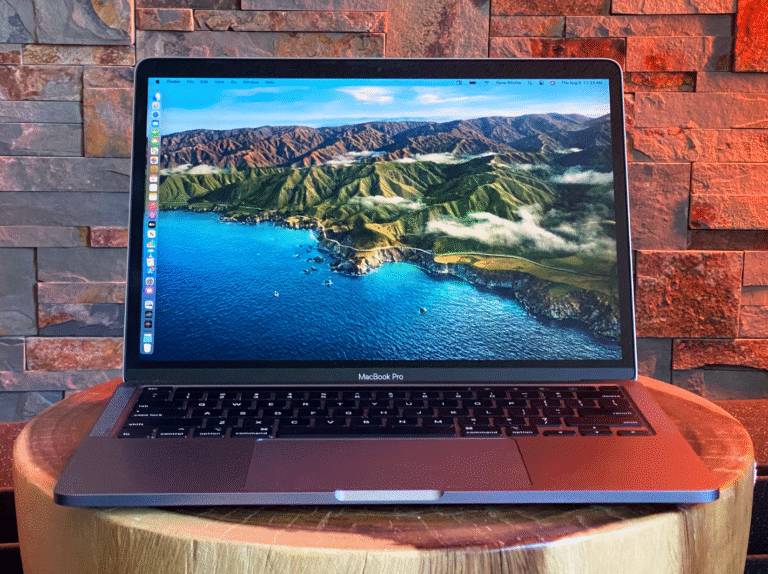
These three product lines represent the most common starting points for someone shopping in the hybrid-work category, each with a distinct personality. The MacBook Air combines long battery life, a fanless design in most configurations, and tight integration with iPhones and iPads for people already inside Apple’s ecosystem, though it requires adjusting to macOS for longtime Windows users.
Dell’s XPS line pairs a compact, well-built chassis with strong display options and broad Windows software compatibility, appealing to people needing specific Windows-only applications for work. Lenovo’s ThinkPad series leans into durability and a well-regarded keyboard feel, with a longer history of business-focused reliability testing and repairability that appeals to IT departments managing large fleets of devices.
Choosing between them usually comes down to operating system preference and existing software dependencies more than raw specifications, since all three offer truly competent configurations at comparable price points. Beyond these three, a handful of other lines deserve consideration depending on specific priorities.
HP’s Spectre and Elite Dragonfly series compete directly with XPS on build quality and screen options, while Asus and Microsoft’s Surface Laptop line appeal to buyers wanting a distinctive design or, in Surface’s case, especially tight integration with a Windows-and-touchscreen workflow. None of these alternatives are objectively worse than the three more commonly recommended lines; they simply have a smaller mindshare in most buying guides.
- HP Spectre / Elite Dragonfly: premium build quality and strong displays, aimed squarely at the same buyer XPS competes for.
- Surface Laptop: tight touchscreen and pen integration for anyone leaning into Windows tablet-style workflows.
- Asus Zenbook: competitive specs at a lower price point, appealing to budget-conscious buyers who still want a premium feel.
- Framework Laptop: a modular, repair-friendly design aimed at buyers who want to swap components rather than replace the whole machine.
Docking Stations and the Two-Setup Problem
Hybrid work typically means alternating between a home or office desk setup with a larger monitor and a lightweight laptop configuration for travel days, and figuring out how to move smoothly between the two matters as much as the laptop itself.
- Single-cable docking: a quality USB-C dock connects power, an external monitor, ethernet, and peripherals through one cable, turning desk setup into a single plug-in action.
- External monitor arm: pairing a dock with a monitor arm frees desk space and lets the laptop screen serve as a secondary display when docked.
- Peripheral consistency: keeping the same keyboard and mouse at the desk setup, rather than relying on the laptop’s built-in versions, reduces the adjustment between home and travel days.
- Cable management: a tidy, dedicated docking setup at a home desk removes the daily friction of plugging in multiple separate cables.
Investing a modest amount in a good docking setup pays off daily, turning the transition between mobile and desk work into a five-second action rather than a five-minute cable-untangling chore.
Thunderbolt and USB-C standards have converged enough in recent years that a single dock generally works across brands, though it’s worth double-checking a specific laptop’s port capabilities before buying, since some budget models support charging or video output through USB-C but not both simultaneously through the same port.
A dock rated for the total power a laptop draws under load avoids the frustrating situation where a docked laptop slowly drains battery during heavy use despite technically being plugged in.
Durability, Repairability, and Long-Term Reliability
Laptops that travel frequently face more physical stress than desk-bound machines: bag drops, temperature swings between an air-conditioned office and a hot car, and the general wear of being packed and unpacked constantly. Military-grade durability testing, a spec many manufacturers now advertise, indicates a laptop has been tested against drops, vibration, and dust, though real-world results still vary by specific model and build quality.
Repairability matters more for longer-term ownership than most buyers initially consider. Laptops with user-replaceable batteries and storage, more common in business-focused lines like ThinkPad, extend useful life substantially compared to fully sealed designs where a single failed component can mean replacing the entire machine. For someone planning to keep a laptop for four or five years of regular travel, checking repairability alongside performance specs is a reasonable part of due diligence.
Extended warranty and accidental damage coverage tend to make more financial sense for a heavily traveled laptop than for a desk-bound one, given the elevated risk of drops, spills, and rough handling in transit. Reading the specific terms matters, since some accidental damage plans exclude cosmetic damage or cap the number of covered incidents, and a plan that sounds comprehensive in marketing copy sometimes covers far less than a traveler assumes when an actual incident occurs.
Screen Quality for Video Calls and Presentations
Screen quality affects hybrid work more directly than people expect, since video calls and screen sharing during presentations happen constantly throughout a typical week. A dim or washed-out display makes it harder to judge how content will look to others during a screen share, and poor webcam quality, often overlooked in favor of screen specs, affects how professional someone appears on every video call.
Higher resolution displays render text more sharply during long document editing sessions, reducing eye strain over a full workday. Color accuracy matters more for anyone doing design or photo work, but even for general office tasks, a higher-quality panel makes the difference between a laptop that’s pleasant to stare at for eight hours and one that starts causing headaches by mid-afternoon.
Webcam and microphone quality deserve equal weight alongside screen resolution, since both directly shape how a person comes across on every video call regardless of how carefully they’ve set up lighting or a background elsewhere. Many otherwise excellent laptops still ship with underwhelming built-in cameras, which is why some frequent video callers pair a good laptop with an external webcam for important calls rather than relying on built-in hardware that manufacturers often treat as an afterthought.
Security Features for Devices That Travel
A laptop that leaves the house regularly carries higher risk of loss or theft than one that stays on a home desk, making built-in security features more relevant for frequent travelers than for strictly home-based workers. Fingerprint readers and facial recognition, now standard on most premium laptops, provide faster and more secure login than typed passwords alone.
- Full-disk encryption: enabling built-in encryption, like BitLocker on Windows or FileVault on macOS, protects data even if the laptop itself is lost or stolen.
- Remote wipe capability: business-managed laptops often support remotely erasing data if a device goes missing, a feature worth confirming with IT before extended travel.
- Physical webcam covers: a growing number of laptops now include a built-in slider to physically block the camera, addressing a low-effort but real privacy concern.
- Kensington lock slots: a physical laptop lock, still standard on many business laptops, offers cheap insurance against opportunistic theft in shared coworking spaces or cafes.
Combining these features with basic habits, like never leaving a laptop unattended in a public space, closes most of the realistic risk that comes with regularly carrying a work device through airports and unfamiliar offices.
A privacy screen filter, an inexpensive add-on that darkens the display for anyone viewing from an angle, protects against a different and more mundane risk: someone in a nearby airplane seat or coffee shop table casually reading sensitive information over a shoulder. It’s a small, low-cost habit that closes off a surprisingly common way confidential information leaks without any hacking or theft involved at all.
Final Thoughts
Choosing a laptop for hybrid work and travel comes down to prioritizing the specs that affect daily life over the ones that look impressive on paper. Weight, real-world battery life, and keyboard comfort shape how a laptop feels to use every single day, while raw processing power beyond a reasonable baseline mostly sits unused for typical office tasks.
A well-chosen docking setup extends that same laptop into a comfortable full desk experience without needing a second machine, closing the gap that once required carrying two separate devices for two separate contexts.
The right choice is rarely the most powerful option available it’s the one that disappears into the background of a busy, moving work life instead of adding friction to it, letting the actual work stay the focus rather than the tool used to do it.
Frequently Asked Questions
Is a MacBook or a Windows laptop better for hybrid work?
Neither is objectively superior; the choice largely depends on existing software needs and ecosystem preference. MacBooks tend to offer longer battery life and tighter integration with iPhones, while Windows laptops offer broader compatibility with specific business software some employers require, so the deciding factor is usually which ecosystem the rest of a person’s devices and workplace tools already sit inside.
How much should I expect to spend on a good hybrid-work laptop?
A solid, reliable laptop suited to typical hybrid work generally falls in the middle price tier rather than either the cheapest or most premium options, often somewhere around a thousand to fifteen hundred dollars depending on configuration. Spending substantially more usually buys performance headroom aimed at video editing or gaming that most hybrid workers don’t need.
Do I need a dedicated graphics card for typical office work?
No, integrated graphics found in most modern laptops handle video calls, document editing, and web browsing comfortably. Dedicated graphics only become relevant for video editing, 3D work, or gaming, and mainly add weight and reduce battery life for everyone else.
How often should I replace a work laptop?
Three to five years is a reasonable range for most hybrid workers, with the exact timing depending on battery health and whether the laptop still comfortably handles current software. A laptop that struggles to keep more than a few browser tabs open smoothly, or that no longer holds a charge through half a workday, is usually signaling it’s time for an upgrade.
Is it worth buying a laptop with a touchscreen for hybrid work?
For most office-style work, a touchscreen adds limited practical benefit and typically reduces battery life slightly. It’s more useful for people doing digital note-taking, sketching, or frequently working in tablet mode, and less essential for standard document and spreadsheet work.
What’s the most overlooked spec when buying a travel laptop?
Keyboard and trackpad quality get overlooked far more often than screen or processor specs, despite being what you physically interact with for hours every day. Testing a laptop’s keyboard feel in person, when possible, catches a mismatch that a spec sheet alone never reveals, and a shallow or mushy keyboard can turn even the fastest processor into a frustrating daily companion.